
Download TimeHunk – Simple Time Management App for Mac
Overview of TimeHunk
TimeHunk is a lightweight, skinnable time‑management utility designed exclusively for macOS. Its core idea is simple yet powerful: break your day into custom‑defined “time slices” and let the app keep you on track with visual cues and optional alarms. Whether you’re a student who wants a 40‑minute study block followed by a 10‑minute break, a developer who needs focused coding sprints, or anyone who prefers a visual countdown, TimeHunk delivers a clean, distraction‑free interface that stays on top of other windows.
The app ships with five built‑in visual styles ranging from a minimalist progress bar to an eye‑catching stopwatch display, giving you the freedom to match the look with your workflow or personal taste. While the preferences panel is intentionally modest—focusing on slice length, alarm sound, and window behavior—it provides enough flexibility for most everyday scenarios without overwhelming the user with endless options. As a free download, TimeHunk offers a polished experience that feels native to macOS, complete with retina‑ready graphics and smooth animations.
However, power users may notice that the slice sequencing is linear; the app does not currently support branching schedules or automatic task‑type detection. Overall, TimeHunk stands out as an elegant, no‑frills solution for anyone seeking a reliable, visual timer on their Mac, especially when the goal is to keep the interface simple, fast, and visually appealing.
Key Features and Functionalities
- Customizable Time Slices: Define any length for work or break periods, from a few seconds to several hours.
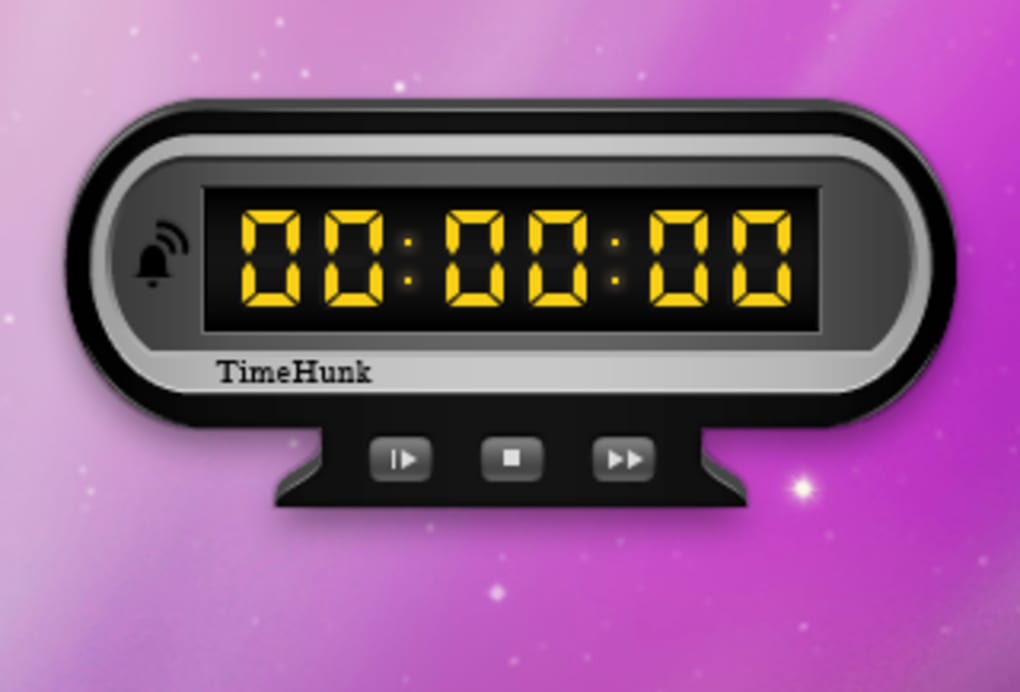
- Multiple Visual Skins: Choose from five distinct styles, including a classic progress bar, digital stopwatch, and modern circular timer.
- Always‑On‑Top Window: Keep TimeHunk visible while you switch between applications, ensuring you never lose track of the current slice.
- Audible Alerts: Optional alarm sounds trigger at the end of each slice, with the ability to select a custom system sound.
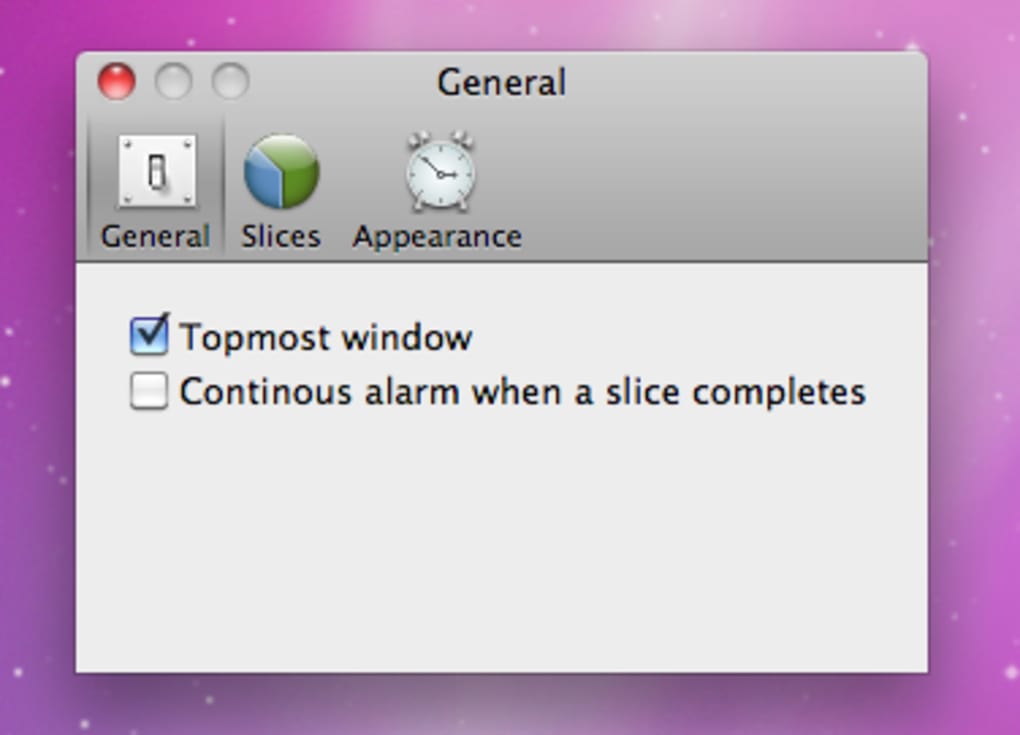
- Simple Preferences Panel: Adjust slice lengths, select a skin, enable/disable the top‑most window feature, and set alarm preferences in a clean, uncluttered UI.
- Lightweight Footprint: The app consumes minimal CPU and memory, making it ideal for older Macs or for users who run multiple productivity tools simultaneously.
- Retina‑Ready Graphics: All visual elements scale crisply on high‑resolution displays, preserving readability and aesthetic quality.
TimeHunk’s design philosophy centers on “do one thing and do it well.” By limiting the feature set to essential timing functions, the developers avoid feature bloat and keep the app responsive. For users who need more advanced project tracking—such as automatic task logging, integration with calendars, or statistical reporting—TimeHunk intentionally stays out of the way, allowing you to pair it with complementary tools like Todoist or Notion. The visual skins not only serve aesthetic purposes but also provide functional cues; for example, the circular timer changes color as the slice nears completion, giving a quick, glanceable indication of remaining time. Although the app lacks a built‑in history log, its simplicity makes it easy to use alongside manual note‑taking methods, ensuring you can still review how many slices you completed each day. In short, TimeHunk offers a focused set of features that cover the core needs of anyone looking for a reliable, attractive timer on macOS.
Installation, Usage, and Compatibility
How to Download and Install
Installing TimeHunk is straightforward. Visit the official website or a trusted Mac software repository, click the “Download for macOS” button, and save the .dmg file to your Downloads folder. Open the disk image, then drag the TimeHunk icon into your Applications folder. macOS may warn you about an unidentified developer; simply right‑click the app, choose “Open,” and confirm you want to run it. After the first launch, you can add TimeHunk to your Dock for quick access.
First‑Run Configuration
Upon opening the app, you’ll be greeted by the default progress‑bar skin with a single 25‑minute slice. To customize, click the gear icon in the top‑right corner to open Preferences. Here you can add, delete, or reorder slices, set each slice’s length, and choose an alarm sound. After configuring your schedule, close the Preferences window; the timer will automatically start with the first slice. You can pause, resume, or reset the timer using the control buttons at the bottom of the window.
System Requirements
TimeHunk runs on macOS 10.12 (Sierra) and later, including macOS Ventura and macOS Sonoma. The app is optimized for both Intel‑based and Apple Silicon Macs, offering native performance on M1 and M2 chips without the need for Rosetta translation.
Updates and Security
The developer provides regular free updates through the built‑in auto‑update checker. When a new version is available, a discreet notification appears, allowing you to download and install the latest build with a single click. All updates are signed with Apple’s notarization service, ensuring that the software is safe, free from malware, and compliant with macOS security standards.
Pros, Cons, and Frequently Asked Questions
Pros
- Free to download and use, with no hidden in‑app purchases.
- Highly visual with five customizable skins.
- Lightweight and fast; negligible impact on system resources.
- Always‑on‑top window keeps you aware of the current slice.
- Simple preferences panel avoids overwhelming users.
Cons
- Limited to linear time‑slice sequences; no branching schedules.
- Lacks a built‑in history or analytics feature.
- No direct integration with calendar or task‑management apps.
- Visual cues can be ambiguous when a slice ends and the next begins.
- Only available for macOS; no Windows, Android, or iOS version.
FAQ
Can I use TimeHunk for Pomodoro‑style work sessions?
Absolutely. Set a 25‑minute work slice followed by a 5‑minute break slice, then repeat the pattern as many times as you need. The app will cycle through the slices in the order you defined.
Is there a way to export my timer data?
TimeHunk does not currently include an export feature. Users who need detailed logs can manually note slice completions or pair the app with a third‑party tracking tool.
Can I change the alarm sound to a custom audio file?
Yes. In Preferences, select “Custom…” from the alarm dropdown and choose any audio file supported by macOS (e.g., .aiff, .wav, .mp3).
Does TimeHunk support dark mode?
The app automatically follows the system appearance setting. In dark mode, the skins adjust their colors to maintain readability and visual appeal.
Is there a premium version with more features?
At present, TimeHunk is offered as a completely free application. The developer has indicated that future updates may introduce optional paid extensions, but none are available at this time.
Conclusion and Call to Action
TimeHunk delivers exactly what its name promises: a compact, functional tool that helps you “hunk” away at your time in bite‑size, manageable pieces. For macOS users who value simplicity over extensive feature sets, the app’s clean interface, attractive skins, and reliable alerts make it a worthy addition to any productivity toolkit. While power users may crave deeper analytics or integration capabilities, the core experience remains smooth, stable, and free of clutter. If you’re looking for a no‑frills timer that stays on top of your workflow and lets you define custom work‑break cycles in seconds, TimeHunk is an excellent choice. Download it today, experiment with the different visual styles, and see how a few well‑timed slices can boost your focus and productivity.
TimeHunk offers a sleek, free solution for macOS users seeking a simple, visual timer. Its strength lies in its minimalistic design and reliable performance, though it lacks advanced scheduling features found in premium competitors.
Click here to download TimeHunk now and start managing your day with a clean, attractive timer that works exactly as intended.







